

Manage Connectors
Add, configure, and monitor MCP servers in SealGate.
A server is an MCP (Model Context Protocol) endpoint that your AI tools connect through. SealGate proxies all AI traffic through registered servers so it can apply policies, logging, and access controls.
The Manage Connectors View
Go to Manage Connectors in the sidebar to see all registered servers.
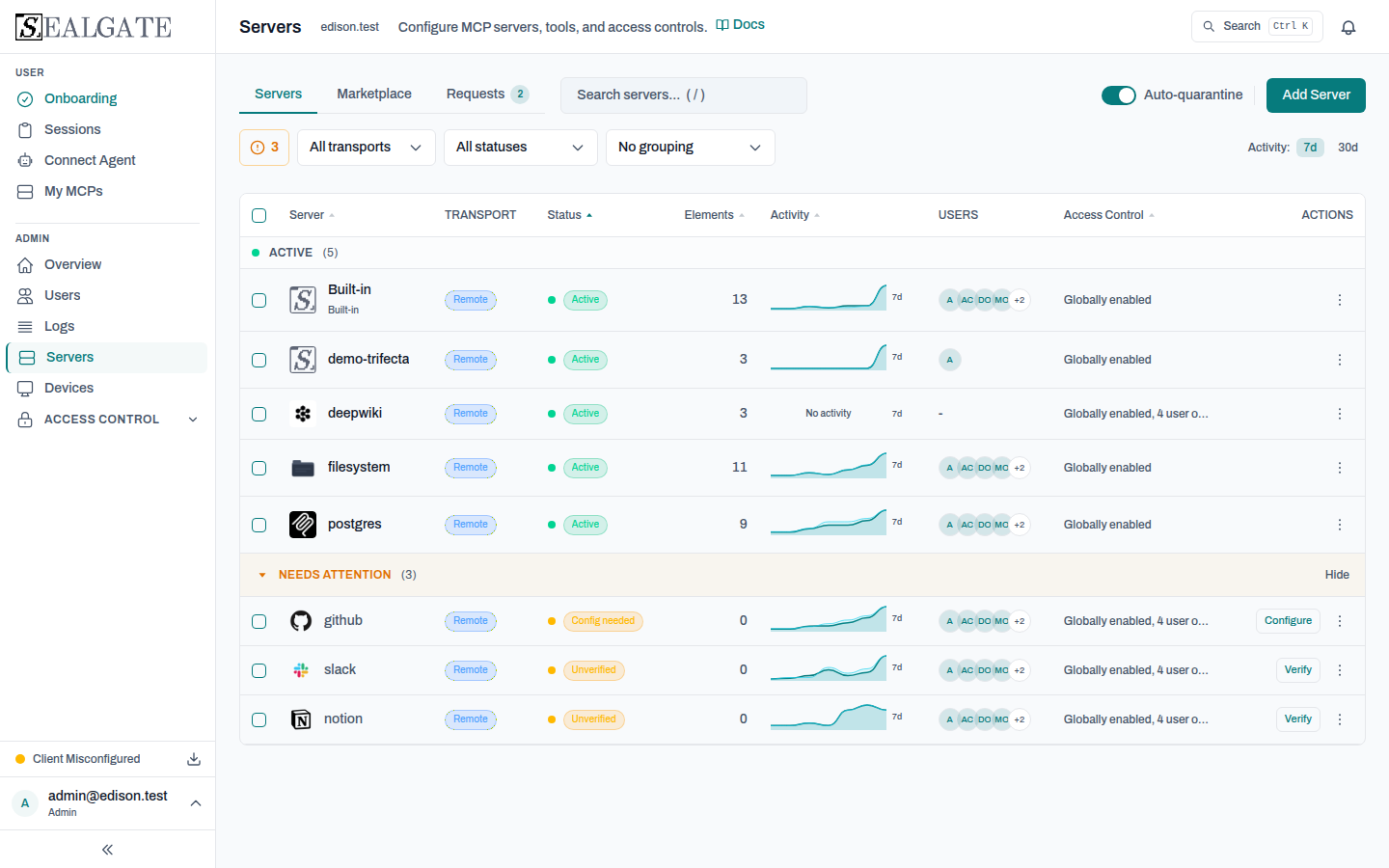
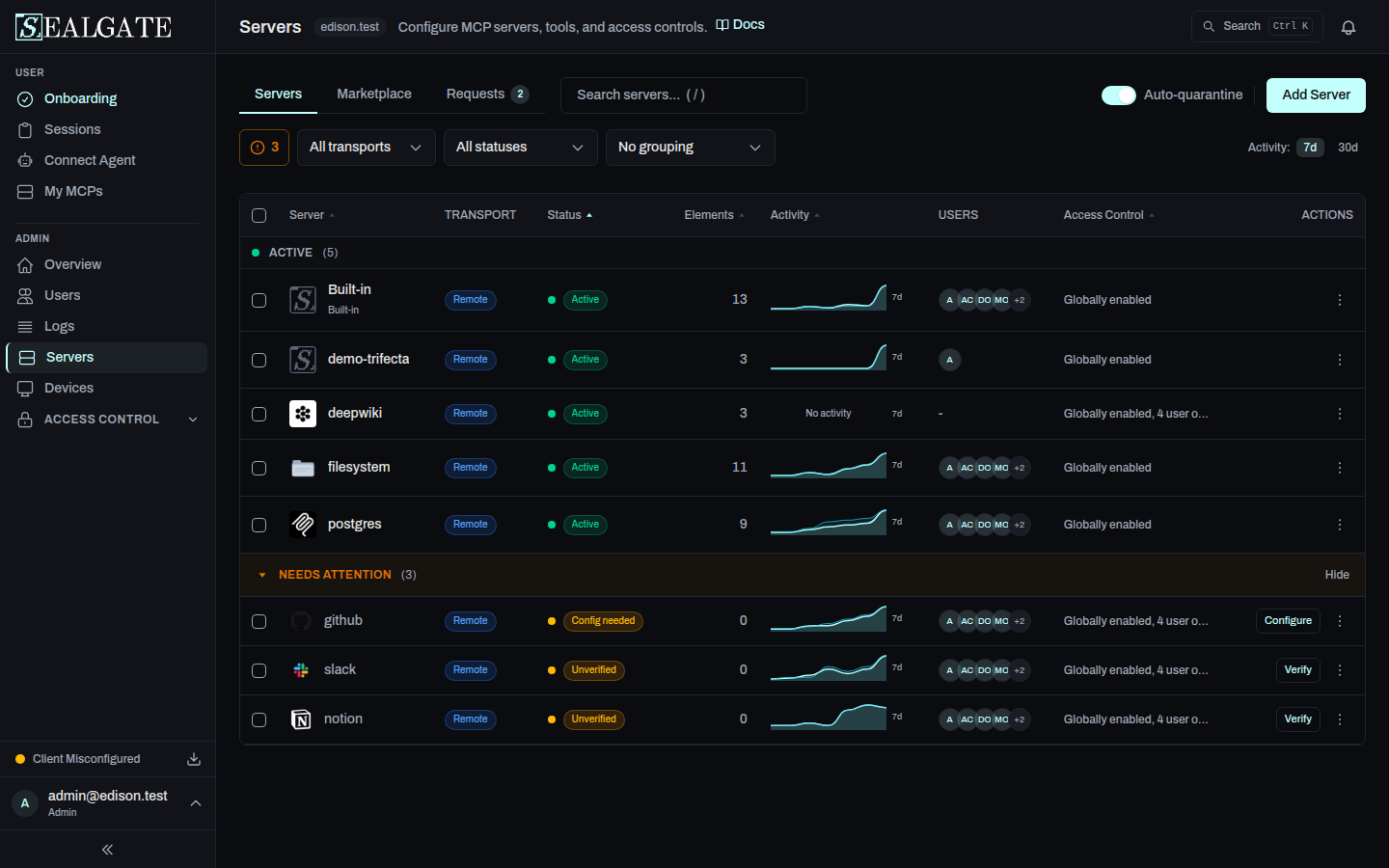
Each server is shown as a card with:
| Indicator | Meaning |
|---|---|
| Green dot | Server is enabled and healthy. |
| Amber dot | Server is enabled but needs configuration. |
| Gray dot | Server is disabled. |
The card also shows the server's tool count and a built-in badge when applicable. The full command, arguments, and environment variables are shown in the inline configuration panel, not on the card itself.
Tabs
| Tab | Description |
|---|---|
| Servers | List of all registered servers for your organization. |
| Marketplace | Browse pre-built MCP server templates and install them in one click. |
| Requests | (Admins only) Pending requests from users to access new MCP servers, plus servers held by quarantine, awaiting your approval. The tab shows a badge with the pending count; the same requests also appear on the Overview page. |
Adding a Server
Click Add Server to open the creation form:
- Org - The organization domain the server will be created in.
- Server name - A unique identifier (alphanumeric, hyphens allowed).
- Command - The shell command SealGate runs to start the server (e.g.
npx @modelcontextprotocol/server).
Click Create Server to save.
Installing from the Marketplace
Switch to the Marketplace tab to browse community and verified MCP servers. Click Install on any entry to add it to your server list with pre-filled configuration.
Configuring a Server
Click any server card to open the inline Configure panel. From here you can:
- Edit the server command, arguments, and environment variables.
- Set template field values (credentials, API keys) required by the server.
- Enable or disable the server.
- Delete the server.
Quick Enable / Disable
Each card has an actions menu (three-dot icon) in the bottom-right corner with an Enable / Disable option. Selecting it immediately changes the server's state without opening the full configuration panel.
MCP Tester
When a server card is selected, switch to the MCP Tester tab in the inline panel to send test tool calls directly to the server and inspect the responses.
Linking to a Server, Tab or Tool
Every server panel has its own URL. Clicking a server card or a tab updates the address bar, so you can copy the URL and share it with another admin. Press Esc to close the panel and return to /dashboard/servers.
| URL | Opens |
|---|---|
/dashboard/servers/github | The github server's panel. |
/dashboard/servers/github/<tab> | The panel on a tab: permissions, configuration, json-config, oauth, security, or tester (the MCP Tester). |
/dashboard/servers/github/tools/create_issue | The Permissions tab with the tools list expanded and create_issue highlighted. The prefixed name (github_create_issue) also works. |
/dashboard/servers/runpod/configuration?header=Authorization: Bearer {RUNPOD_API_KEY} | The Configuration tab with that header filled in. Nothing is saved until you press Save Configuration. |
/dashboard/servers/new?url=<mcp-url>&name=<name> | The Add Server dialog, prefilled. |
The last link is the same flow as the /add-mcp link at a dashboard URL: admins get Approve & Add, members get a prefilled access request, and nothing is created until the person confirms. A link can name headers (header=Authorization: Bearer {API_KEY}) and environment variables (env=API_KEY), but never their values: a header value must be a {KEY} placeholder, an environment variable arrives empty, and a link with a real secret in it is rejected. Enter the secret in the dashboard once the server is added.
These links survive sign-in: a signed-out person who opens one goes to the login page and then lands on the linked page. Older /dashboard/servers?server=github&tab=... links still work and are redirected.
Supply-Chain Pins
SealGate can pin server packages to a specific version to guard against supply-chain attacks. The Clear All Pins button (admin only) removes all version pins across all servers at once, allowing them to resolve to the latest version on next start.
Only admins can create, edit, or delete servers. Regular users see servers through the My Connectors page.