

Understanding Security Flags
Learn about security flags and the Lethal Trifecta.
SealGate uses three flags to track risk in AI sessions.
Security Flags
📘 Private Data Access
Triggered by: Reading files, querying databases, or accessing internal documents. Risk: Sensitive information could be exposed.
🌐 Untrusted Content Exposure
Triggered by: Fetching web pages or calling external APIs. Risk: The AI could receive malicious instructions (prompt injection).
✉️ External Communication
Triggered by: Sending emails, posting to Slack, or making external API calls. Risk: Confidential data could be exfiltrated.
The Lethal Trifecta
The "Lethal Trifecta" occurs when a session has all three flags active:
| Status | Meaning |
|---|---|
| ✓ Private Data | AI has seen confidential info. |
| ✓ Untrusted Content | AI may have received malicious instructions. |
| ⏳ External Communication | AI is attempting to send data externally. |
Protection: SealGate always tracks these flags, but blocking the action that completes the trifecta is off by default. Until an admin turns on Block lethal-trifecta writes in the Lethal Trifecta Protection card on the Guardrails page, the completing action still goes through and is only recorded. See Settings.
Viewing Flags in the Dashboard
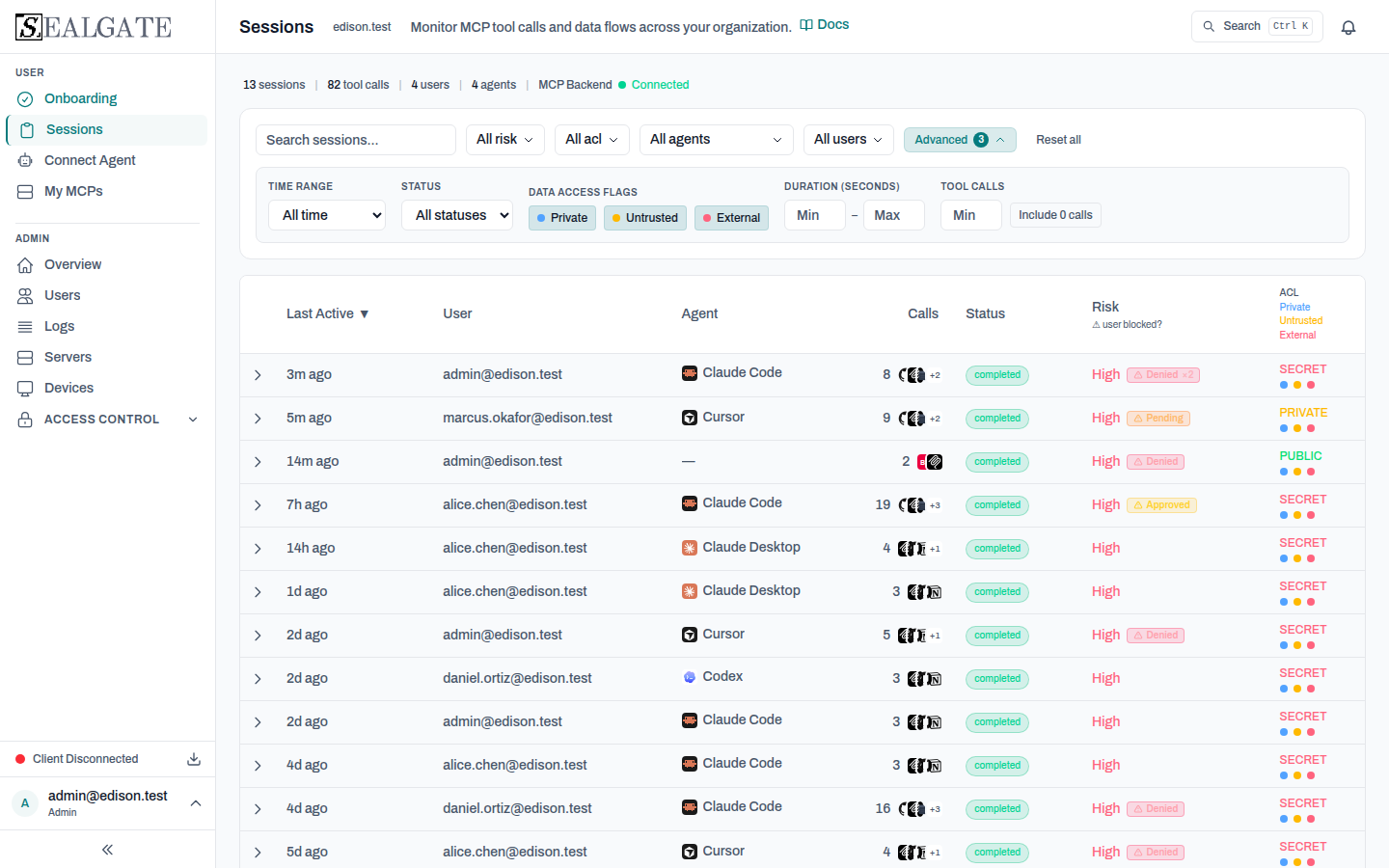
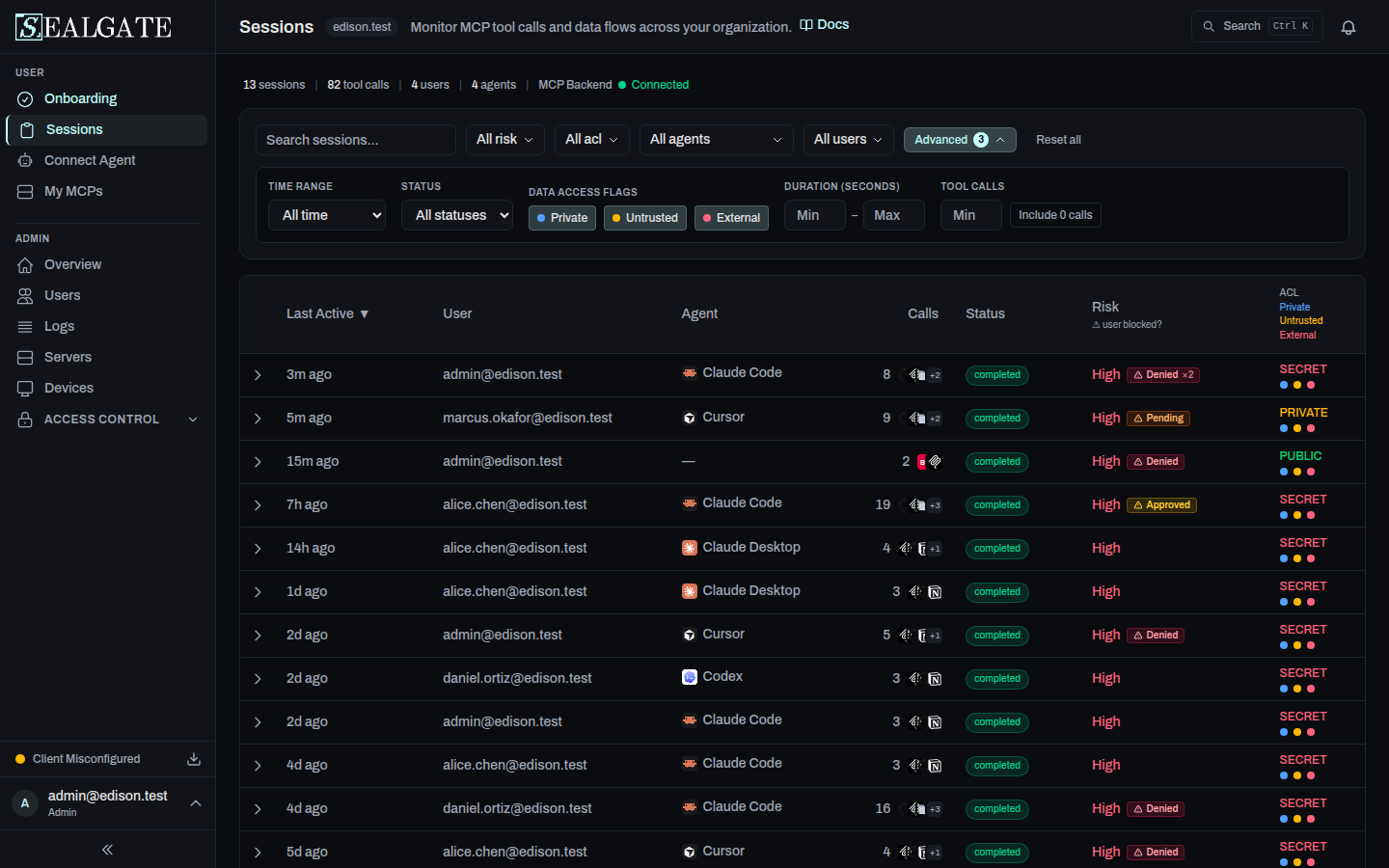
The Sessions view uses colored dots to show active flags:
- 🔵 Blue: Private Data Access
- 🟡 Amber: Untrusted Content Exposure
- 🔴 Red: External Communication
Risk Levels
- Low (green): no External Communication flag, or External Communication on its own
- Medium (amber): External Communication plus either Private Data or Untrusted Content
- High (red): all three flags, the Lethal Trifecta
ACL Levels
Access Control Levels (ACL) provide additional protection:
| Level | Meaning |
|---|---|
| PUBLIC | Non-sensitive data. |
| PRIVATE | Internal/confidential data. |
| SECRET | Highly sensitive data. |
Enforcement: SealGate automatically blocks high-to-low data flows (e.g., reading SECRET data then posting to a PUBLIC channel). These blocks do not ask for approval - they are prevented by default.
For Admins: You can classify tools and set ACL levels from the Access Control page and via Policy Rules.